
What Is the Cloudflare /crawl Endpoint?
Cloudflare’s /crawl endpoint is part of their Browser Rendering API, currently in open beta. It scrapes content from a starting URL, follows links across the site up to a configurable depth or page limit, and returns the results as HTML, Markdown, or structured JSON powered by Workers AI. Cloudflare positions it as a tool for training models, building RAG pipelines, and researching or monitoring content across a site.
The endpoint operates as a signed-agent that respects robots.txt and Cloudflare’s AI Crawl Control by default, which is a notable design choice. It’s meant to make it easy for developers to comply with website rules and harder for crawlers to ignore site owner guidance.
The endpoint lives at:
https://api.cloudflare.com/client/v4/accounts/<account_id>/browser-rendering/crawl
You need a Cloudflare API token with Browser Rendering Edit permission to use it.
How It Works
The crawl runs as an asynchronous job in two steps:
- Start the crawl with a POST request containing a starting URL. The API returns a job ID immediately.
- Poll for results with GET requests using that job ID. When the job status changes from
runningtocompleted, your crawled data is ready.
Jobs can run for up to seven days. Results are stored for 14 days after completion.
What You Send
At minimum, you send a URL:
curl -X POST 'https://api.cloudflare.com/client/v4/accounts/{account_id}/browser-rendering/crawl' \
  -H 'Authorization: Bearer <apiToken>' \
  -H 'Content-Type: application/json' \
  -d '{
    "url": "https://example.com"
  }'
Key Parameters
| Parameter | Default | What It Does |
|---|---|---|
limit |
10 | Max pages to crawl (up to 100,000) |
depth |
100,000 | Max link depth from starting URL |
source |
all |
Where to discover URLs: all, sitemaps, or links |
formats |
HTML | Response format: html, markdown, or json |
render |
true | Execute JavaScript (true) or fast HTML fetch (false) |
maxAge |
86,400 | Cache TTL in seconds (max 604,800) |
modifiedSince |
none | Unix timestamp: only crawl pages modified after this time |
options.includePatterns |
none | Only crawl URLs matching these wildcard patterns |
options.excludePatterns |
none | Skip URLs matching these patterns |
What You Get Back
Each crawled page returns as a record with the URL, status, content in your chosen format, and basic metadata (HTTP status code, page title, final URL after redirects). With render: true, you also get Open Graph tags. The response also includes browserSecondsUsed for billing visibility, and a cursor for paginating results that exceed 10 MB.
Here is the actual job-level response from a 24-page rendered crawl of a live Shopify store:
{
  "job_id": "a1b2c3d4-e5f6-7890-abcd-ef1234567890",
  "status": "completed",
  "total": 24,
  "finished": 24,
  "browserSecondsUsed": 58.38,
  "record_count": 24,
  "records": [
    {
      "url": "https://www.example-store.com/products/premium-widget-bundle",
      "status": "completed",
      "metadata": {
        "status": 200,
        "title": "Premium Widget Bundle | Example Store",
        "url": "https://www.example-store.com/products/premium-widget-bundle",
        "lastModified": "",
        "og:type": "product",
        "og:site_name": "Example Store",
        "og:title": "Premium Widget Bundle | Example Store",
        "og:image": "https://www.example-store.com/cdn/shop/files/product-image.jpg",
        "og:description": "Our best-selling bundle with everything you need..."
      },
      "markdown": "Store\n\nexample-store\n\nURL\n\nhttps://www.example-store.com\n\nCurrency\n\nUSD\n\n# Premium Widget Bundle\n\nOur best-selling bundle with everything you need..."
    }
  ]
}
With render: true, the metadata object includes the full set of Open Graph fields: type, site name, title, image URL, and description. These are pulled from the page’s OG meta tags during the browser render. With render: false, the metadata only contains the HTTP status code, page title, and final URL. No Open Graph fields are extracted.
The markdown field contains the entire page output, not just the main content. Navigation menus, mega menus, footers, and repeated template blocks are all included in every record. In our tests, the average page returned roughly 158 KB of markdown, with approximately 90% of that being repeated boilerplate. If you are feeding this into an LLM or RAG pipeline, you will need your own content extraction logic to strip the template and isolate the actual page content.
Here is what the same store returned when we ran render: false:
{
  "job_id": "f9e8d7c6-b5a4-3210-fedc-ba9876543210",
  "status": "completed",
  "total": 266,
  "finished": 266,
  "browserSecondsUsed": 0,
  "record_count": 256,
  "records": [
    {
      "url": "https://www.example-store.com/products/classic-knit-sweater",
      "status": "completed",
      "metadata": {
        "status": 200,
        "title": "Classic Knit Sweater | Example Store",
        "url": "https://www.example-store.com/products/classic-knit-sweater",
        "lastModified": ""
      },
      "markdown": "Skip to content\n\nFree Shipping $150+\n\n# Classic Knit Sweater\n\nOur best-selling sweater made from premium natural fibers..."
    }
  ]
}
Zero browser seconds, 256 records out of 266 pages. The metadata is minimal compared to the rendered version: no Open Graph fields, just the HTTP status, page title, and URL. But the markdown still contains the full page content including navigation, product details, and footer. For server-rendered Shopify stores, the static HTML already has everything you need.
URL Discovery
The crawler discovers URLs through three sources (when source is set to all):
- The starting URL you provide
- Sitemap links found on the domain
- Internal links found on crawled pages
You can restrict this to sitemaps only or page links only using the source parameter. excludePatterns always takes priority over includePatterns, so you can cast a wide net and then carve out sections you don’t need.
Rendering vs. Fast Fetch
render: true (the default) spins up a headless browser, executes JavaScript, and waits for the page to fully load. This is necessary for single-page applications and JavaScript-rendered content, but it uses browser seconds that are billed.
render: false does a fast HTML fetch without executing JavaScript. During the beta, these fetches are not billed. This is the right choice for static sites or server-rendered pages where the content is already in the initial HTML.
Billing and Availability
The endpoint is available on both Workers Free and Paid plans. Rendered crawls are billed under Cloudflare’s Browser Rendering pricing at $0.09 per browser hour beyond your included allocation.
Workers Free: 10 minutes of browser time per day. The /crawl endpoint is limited to 5 jobs per day, 100 pages per crawl, and 6 API requests per minute.
Workers Paid ($5/month): 10 hours of browser time per month included. No per-crawl page limits. 600 API requests per minute. Additional browser hours are $0.09 each.
render: false crawls use zero browser time. They are free during the beta but will eventually fall under standard Workers pricing.
What Is Wall Clock Time?
Wall clock time is the total elapsed time from when a crawl starts to when it finishes, measured the same way you would time it with a stopwatch. It includes everything: network latency, Cloudflare’s internal queue time, DNS lookups, server response time, and (if rendering is enabled) browser execution time.
Wall clock time is different from browser time. Browser time only counts the seconds Cloudflare’s headless browser spends actively rendering pages. A crawl might use 22 minutes of browser time but take 25 minutes wall clock because of queue and network overhead. Crawls without rendering use zero browser time but still have wall clock time from the fetch and queue process.
In our benchmarks, we report both numbers so you can see what you’re paying for (browser time) versus how long you’re actually waiting (wall clock time).
The Fine Print
The endpoint respects robots.txt directives including crawl-delay. It identifies itself as CloudflareBrowserRenderingCrawler/1.0. It does not bypass CAPTCHAs, Turnstile challenges, or other bot protection. If you’re crawling your own site and getting blocked, you need to create a WAF skip rule to allowlist the crawler.
How Cloudflare /crawl Behaves Across Five Shopify Stores
We ran the /crawl endpoint against five live Shopify stores to measure speed, success rate, cost, and how the crawler interacts with each site. Every store name is anonymized. These are real numbers from real crawls. Wall clock times are approximate estimates. Some early tests used scripts with limited error handling, which may have affected reported success rates on certain stores. Where this applies, we note it below.
This is not a set-it-and-forget-it endpoint. Each store responded differently to endpoint requests. Some needed resource blocking to finish a rendered crawl. Others returned 429 errors on one mode but worked fine on the other. Crawl-delay directives, page count, and store architecture all changed the outcome. Plan on testing and tuning the settings for each site you crawl. For our recommended configurations by site type, see the best Cloudflare /crawl settings for any website.
Test 1: Large E-Commerce Catalog (Store A)
We pointed the /crawl endpoint at a large Shopify store with nearly 3,000 pages. Content came back fast, the markdown was usable, and the endpoint had no trouble fetching product pages, collection pages, and blog content. No proxy issues, no blocks, no rate limiting.
We ran multiple crawls at different scales:
| Crawl Size | Pages Returned | Mode | Browser Time | Wall Clock |
|---|---|---|---|---|
| 20-page sample | 20 / 20 (100%) | no-render | 0s | ~1 min |
| 500-page crawl | 500 / 500 (100%) | no-render | 0s | ~18 min |
| 5-page rendered | 4 / 5 (80%) | render: true | 0.9s | ~10s |
Crawling without JavaScript rendering achieved 100% success at both scales. Full browser rendering returned 4 out of 5 pages in a small sample test. On a sample that small, the single missing page could be a browser timeout, a transient error, or a script-side issue.
Test 2: Small Shopify Store (Store D, 24 pages)
A smaller store where we tested the full workflow:
Crawling without rendering returned errors. Our initial test returned 429 responses on the plain HTML fetch. We have not re-tested this store with improved error handling, so we cannot confirm whether the 429s originated from the store’s rate limiting or from transient issues during the test.
Full rendering with sitemap-based discovery was a complete success. 24 out of 24 pages crawled, 100% completion.
| Page Type | Count |
|---|---|
| Products | 9 |
| Collections | 4 |
| Pages | 3 |
| Blogs/News | 5 |
| Other (homepage, blog index) | 3 |
One important discovery: the default URL discovery mode only found 1 page because the homepage had almost no internal links. Switching to sitemap-based discovery found all 24. If your homepage is minimal or JavaScript-heavy, the crawler may not find pages through links alone.
Test 3: Mid-Size Apparel Store (Store B, 256 pages), With and Without Rendering
Our most detailed test. A mid-size apparel store with 256 indexable pages: products, collections, blog posts, and informational pages. We ran both modes on the full site to measure the actual difference.
| Metric | render: false | render: true | Difference |
|---|---|---|---|
| Pages crawled | 256 / 266 | 256 / 266 | Same |
| Total markdown output | 11.0 MB | 12.5 MB | +14% |
| Browser time | 0s | 1,338s (22 min) | +22 min |
| Estimated cost | $0 (beta) | ~$0.03 | +$0.03 |
| Wall clock time | ~5 min | ~25 min | 5x slower |
Test 4: Health & Supplements Retailer (Store C), Partial Success at Scale
A large health products retailer with a massive catalog. We ran two crawls without rendering at different scales:
| Crawl Size | Pages Returned | Success Rate | Wall Clock |
|---|---|---|---|
| 5-page sample | 2 / 5 | 40% | ~25s |
| 100-page crawl | 89 / 100 | 89% | ~3.5 min |
The partial success rate could indicate that this store’s infrastructure drops some non-browser requests, but our initial test lacked robust error recovery, so some of these failures may have been recoverable with better retry handling on our side. The success rate improved from 40% to 89% at larger scale. We have not re-tested this store with improved error handling to isolate the cause.
Test 5: Large Multi-Category Store (Store E, ~1,200 pages)
Our largest and most revealing test. A Shopify store with approximately 1,200 URLs distributed across four sitemaps: 521 products, 626 collections, 22 pages, and 31 blog posts.
| Metric | render: false | render: true (optimized) |
|---|---|---|
| Pages crawled | 1,200 / 1,200 | 100 / 100 |
| Total markdown output | 148.5 MB | 11.3 MB |
| Browser time | 0s | 475s (~8 min) |
| Estimated cost | $0 (beta) | ~$0.012 |
| Wall clock time | ~55 min | ~12 min |
The no-render crawl hit 100% success across all 1,200 pages with zero browser cost. The rendered crawl was run on a 100-page sample with resource blocking optimizations enabled.
Resource blocking made the difference between a stuck crawl and a clean one. Without blocking resources, the rendered crawl hung at 99 out of 100 pages indefinitely and consumed 649 seconds of browser time for those 99 pages. Enabling resource blocking (images, media, fonts, stylesheets) with a domcontentloaded wait condition completed all 100 pages in 475 seconds, a 27% reduction in browser time with no hanging.
Crawl-delay in robots.txt created visible stalls. Store E’s robots.txt specifies a 10-second crawl-delay for certain bots. In our no-render polling data, this appeared as multi-minute plateaus where the page count stalled before resuming. The Cloudflare crawler respects crawl-delay directives, which directly extends wall clock time on sites that set them.
What the /crawl Endpoint Actually Accepts
The endpoint takes one starting URL, not a list. It discovers pages by spidering outward from that URL through sitemaps, page links, or both. If you already have a URL list from a Scrapy crawl and want to use Cloudflare for markdown conversion, you would need to call the separate /markdown or /scrape endpoints individually per URL instead.
What Does Cloudflare /crawl Actually Do on the Server Side?
We pulled the full server logs during a fully rendered crawl of Store D (25 pages) to analyze the real traffic footprint. The results reveal fundamental differences between browser-rendered crawling and traditional bot crawling, with unintended side effects for analytics, server load, and bot traffic monitoring.
| Metric | Value |
|---|---|
| User-Agent | CloudflareBrowserRenderingCrawler/1.0 (100% of hits) |
| Crawl window | 134 seconds (~2 minutes) |
| Peak throughput | 82 requests/second |
| Unique IPs | 23, across 5 Cloudflare data centers |
| GET requests | 2,071 |
| POST requests | 163 |
| Total requests | 2,234 |
| Actual pages rendered | ~25 |
| Requests per page | ~89x amplification |
How Much Traffic Does a Fully Rendered Cloudflare /crawl Actually Generate?
The biggest finding: only 1.1% of the 2,234 requests were actual page content. The other 98.9% were JavaScript, CSS, analytics beacons, tracking pixels, and checkout preloads triggered by the browser loading every page like a real visitor would.
A non-rendered bot like Amazonbot or ChatGPT-User generates 1 request per page. The Cloudflare browser renderer generates 89.
Does Cloudflare /crawl Inflate Shopify Analytics?
The 163 POST requests in our logs were entirely Shopify analytics and tracking endpoints firing during the crawl. These are the same events that fire when a real customer visits your store. From Shopify Analytics’ perspective, the Cloudflare crawler looks like a visitor browsing every page on your site in 2 minutes.
How Fast Does Cloudflare /crawl Hit Your Server?
All 2,234 requests landed in a 134-second window. Peak throughput hit 82 requests per second. The crawler rendered the entire 25-page site in just over 2 minutes, but the server saw a sustained burst of traffic that looks nothing like organic browsing patterns.
For small stores, this is manageable. For larger stores with thousands of pages, the request amplification (89x per page) combined with sustained throughput could create meaningful load on the origin server, especially if you are on a shared hosting plan or have aggressive rate limiting in place.
Where Does Cloudflare /crawl Come From?
The crawl was distributed across 5 Cloudflare data centers in the US:
| Data Center | % of Requests | Location |
|---|---|---|
| ATL | 38% | Atlanta |
| ORD | 25% | Chicago |
| MIA | 23% | Miami |
| EWR | 9% | Newark |
| IAD | 5% | Washington DC |
This is not a single server making requests. Cloudflare distributes the rendering workload across its edge network. All 23 IPs fell in the 104.28.x.x range, and the user-agent was CloudflareBrowserRenderingCrawler/1.0 on every single request.
What Browser Fingerprint Does Cloudflare /crawl Leave?
The renderer sends proper Sec-Fetch headers that mimic a real Chrome browser:
| Header | Value | Real Chrome? |
|---|---|---|
sec-fetch-dest |
script, document, etc. |
Yes, matches |
sec-fetch-mode |
cors, navigate |
Yes, matches |
sec-fetch-site |
same-origin, cross-site |
Yes, matches |
sec-ch-ua (Client Hints) |
Not sent | No, real Chrome sends this |
| HTTP version | HTTP/1.1 | No, real Chrome negotiates HTTP/2 or HTTP/3 |
Two fingerprint gaps stand out: the renderer omits sec-ch-ua Client Hints headers entirely (a real Chrome browser always sends these), and all requests use HTTP/1.1 instead of HTTP/2 or HTTP/3. If you are building bot detection rules, these are reliable signals to distinguish Cloudflare’s browser renderer from actual visitor traffic.
How Does Cloudflare /crawl Compare to Other AI Bots in Server Logs?
We compared the Cloudflare crawl against other bots that hit the same store in the same 12-hour window:
Amazonbot and ChatGPT-User fetch raw HTML: one request, one page, no JavaScript execution. AhrefsBot crawls sitemaps for discovery. The Cloudflare browser renderer executes a full Shopify storefront on every page, triggering every script, pixel, and preload as if a real customer were browsing.
Cloudflare /crawl Speed and Cost: The Full Benchmark
Every crawl we ran, in one table. All stores anonymized, all numbers from real tests. Wall clock times are approximate. Success rates for Stores C and D may have been affected by limited error handling in our initial test scripts.
| Store | Pages | Mode | Success Rate | Browser Time | Wall Clock | Cost |
|---|---|---|---|---|---|---|
| A: Large E-Commerce | 500 / 500 | no-render | 100% | 0s | ~18 min | $0 |
| B: Mid-Size Apparel | 256 / 266 | no-render | 96% | 0s | ~5 min | $0 |
| C: Health & Supplements | 89 / 100 | no-render | 89% | 0s | ~3.5 min | $0 |
| D: Small Shopify | 24 / 24 | render: true | 100% | 58s | ~2 min | ~$0.002 |
| E: Large Multi-Category | 1,200 / 1,200 | no-render | 100% | 0s | ~55 min | $0 |
How Fast Is Cloudflare /crawl With vs. Without Rendering?
The clearest comparison comes from Store B, where we ran both modes on the exact same 256 pages:
The pattern across all eleven crawls is consistent: crawling without rendering is dramatically faster. Wall clock time without rendering is mostly Cloudflare’s internal queue and fetch overhead. Full rendering adds roughly 5 seconds of browser time per page on top of that baseline.
How Much Does a Fully Rendered Cloudflare Crawl Cost Per Page?
Cloudflare’s Browser Rendering pricing is based on browser hours, the time their headless browser spends actively rendering your pages. Crawling without rendering uses zero browser hours and is free during the beta.
Workers Free Plan: 10 minutes of browser time per day. The /crawl endpoint is further limited to 5 crawl jobs per day, with a maximum of 100 pages per crawl.
Workers Paid Plan ($5/month): 10 hours of browser time per month included. Beyond that, you pay $0.09 per additional browser hour. No per-crawl limits on the /crawl endpoint. Up to 600 API requests per minute.
Here is what our test crawls actually cost at $0.09/hr:
| Crawl | Browser Time Used | Cost at $0.09/hr |
|---|---|---|
| Store D: 24 pages rendered | 58 seconds | ~$0.002 |
| Store B: 256 pages rendered | 1,338 seconds (~22 min) | ~$0.03 |
| 3,000-page catalog (estimated) | ~4 hours | ~$0.36 |
At roughly 5 seconds of browser time per page, all of these costs fall well within the 10 hours included on the paid plan. A 3,000-page rendered crawl would use about 4 of your 10 included hours, meaning you could run two full crawls per month before paying anything beyond the $5 base. Crawling without rendering is free and has no browser time cost on either plan.
When Should You Skip Rendering vs. Use Full Rendering on Cloudflare /crawl?
The Takeaway
For most Shopify stores with server-rendered content, crawling without rendering gets you over 90% of the useful content at zero cost in a fraction of the time.
What We Learned Testing Cloudflare /crawl on Shopify Stores
After running 11 crawls across 5 live Shopify stores and analyzing full server logs, these are the findings that matter most.
90% of Content Comes Through Without Rendering
For Shopify stores with standard server-rendered pages, crawling without JavaScript rendering captured over 90% of the useful content. The 14% content increase from full rendering came almost entirely from JavaScript-loaded elements on homepages and index pages. Individual product pages and blog articles were nearly identical either way. Unless your store is built as a single-page app, you probably don’t need full rendering.
Full Rendering Creates an 89x Traffic Multiplier
Rendering 25 pages generated 2,234 server requests. Only 25 of those were actual page content. The other 98.9% were JavaScript files (75%), analytics beacons (6.3%), CSS (4.3%), tracking pixels (3.4%), and checkout preloads (3.3%). Every rendered page triggers the full Shopify client-side stack as if a real customer were browsing.
Your Shopify Analytics Are Likely Being Inflated
Rendered crawls fire Shopify’s full analytics stack: monorail beacons, tracking events, Shop Pay preloads, and web-pixel scripts. We believe this means Shopify Analytics is counting these as real visitor sessions. If that’s the case, a single rendered crawl could inflate your session counts, pageviews, and conversion funnel data. We have not confirmed this directly in Shopify’s reporting, but the server logs show all the same analytics events firing as they would for a real customer.
Full Rendering Can Bypass Store Rate Limits
Store D returned 429 errors on every page without rendering. Switching to full rendering on the same store produced 100% success. If you hit rate limits without rendering, full rendering is your fix.
Sitemap Discovery Is More Reliable Than Link Discovery
The default link-based discovery found almost nothing on Store D because the homepage had very few internal links. Switching to sitemap-based discovery found all 24 pages. Always use sitemap discovery.
The Crawler Comes From 5 US Data Centers
Cloudflare distributes the rendering workload across its edge network. Our crawl came from 23 unique IPs across Atlanta (38%), Chicago (25%), Miami (23%), Newark (9%), and Washington DC (5%). All IPs fall in the 104.28.x.x range.
Two Fingerprint Gaps Identify It as a Bot
The renderer omits sec-ch-ua Client Hints headers (real Chrome always sends these) and uses HTTP/1.1 instead of HTTP/2 or HTTP/3. If you’re building bot detection rules, these are reliable signals.
Rendering Can Actually Return Less Content
On Store E, the no-render crawl returned 6.8% more content per page than the rendered crawl. Blocking images, fonts, and stylesheets to optimize browser time also prevented some JavaScript from populating dynamic elements. The static HTML already had everything. For server-rendered Shopify stores, rendering is not guaranteed to capture more content.
Resource Blocking Prevents Stuck Crawls
Without resource blocking, the rendered crawl on Store E hung at 99 out of 100 pages and never completed. Enabling blocking for images, media, fonts, and stylesheets with a domcontentloaded wait condition completed all 100 pages and reduced browser time by 27%. If your rendered crawls stall before finishing, resource blocking is the fix.
robots.txt Crawl-Delay Extends Wall Clock Time
Store E’s robots.txt specifies a 10-second crawl-delay. In our no-render polling data, this appeared as multi-minute plateaus where the page count stalled before resuming. The Cloudflare crawler respects crawl-delay directives, so sites with aggressive delays will have significantly longer wall clock times than the page count alone would suggest.
Cost Is Low But the Free Plan Has Limits
Rendering 256 pages cost approximately $0.03 at $0.09 per browser hour. Rendering 24 pages cost approximately $0.002. The Workers Free plan caps browser time at 10 minutes per day with a maximum of 5 crawl jobs and 100 pages per crawl. The Workers Paid plan ($5/month) includes 10 hours of browser time per month with no per-crawl limits. A 3,000-page rendered crawl would use about 4 of those 10 included hours, so most stores fit comfortably on the paid plan without overage. Crawling without rendering uses zero browser time and is free on either plan during the beta.
The Pros
Speed
Pages fetched near-instantly versus a multi-hour Scrapy crawl with autothrottle. No queuing, no politeness delays, no waiting for your spider to work through thousands of requests at a respectful pace.
Markdown Output
The endpoint returns pre-converted HTML-to-Markdown for every page. This is directly useful for LLM ingestion, RAG pipelines, and content analysis without any post-processing. You skip the entire extraction layer and go straight to clean text. For teams building AI applications on top of website content, this removes a step from the pipeline.
Render Mode Option
Setting render: true executes JavaScript and automatically extracts Open Graph metadata (og:title, og:description, og:image, og:site_name). For JavaScript-heavy sites where content is rendered client-side, this is the difference between seeing the real page and seeing an empty shell.
No Proxy or Rate-Limit Headaches
Cloudflare handles anti-bot measures and rate limiting on their own infrastructure. You don’t need to manage proxy pools, rotate user agents, or deal with CAPTCHAs. One API call.
Incremental Crawling
The modifiedSince and maxAge parameters let you skip pages that haven’t changed or were recently fetched. For recurring crawls where you’re monitoring content changes, this saves both time and cost by only processing pages that are actually new or updated.
Simplicity
Single API call. JSON response. No spider code, no middleware, no item pipelines, no settings files.
Well-Behaved Bot by Default
The crawler is a signed-agent that respects robots.txt, crawl-delay, and Cloudflare’s AI Crawl Control. It self-identifies as CloudflareBrowserRenderingCrawler/1.0 and cannot bypass bot protection or CAPTCHAs. You get ethical crawling compliance without building the logic yourself.
What the Cloudflare Crawl Endpoint Does Not Support
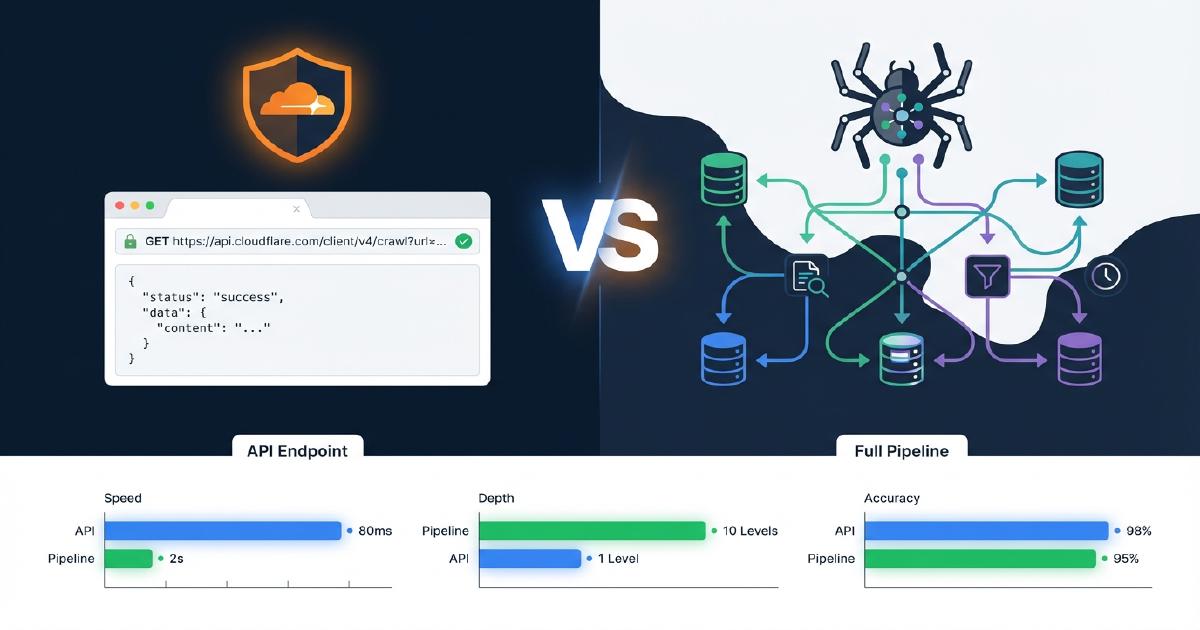
How Does Cloudflare /crawl Differ from a Full Crawl Pipeline?
The table below shows exactly which capabilities are present in Cloudflare’s /crawl endpoint versus a production Scrapy pipeline. This is based on our real tests against Shopify stores.
| Capability | Cloudflare /crawl | Scrapy Pipeline |
|---|---|---|
| Content fetching (HTML/Markdown) | Yes | Yes |
| JavaScript rendering | Yes (render: true) |
Yes (Splash/Playwright) |
| Link discovery / spidering | Yes (flat list) | Yes (full crawl graph) |
| Parent-child link mapping | No | Yes |
| Orphan page detection | No | Yes |
| Redirect chain tracking | No | Yes |
| JSON-LD extraction | No | Yes |
| Microdata extraction | No | Yes |
| Schema validation + issue reporting | No | Yes |
| Non-200 status codes (404s, 403s) | No | Yes (captured 2,547 404s in our test) |
| URL limit | 100,000 | None |
What Structured Data Does Cloudflare /crawl Extract?
With render: false, none. No JSON-LD, no Microdata, no OpenGraph parsing.
With render: true, basic OG tags only (og:title, og:description, og:image, og:site_name). JSON-LD and schema.org markup are not parsed, extracted, or validated.
For comparison, our Scrapy pipeline produces schemas_found, issues (missing contactPoint, address, etc.), top_level_schemas, and nested_schemas for every URL. You can see which pages have Product schema, which are missing Organization markup, and which have validation errors that would cause AI systems to misread the content.
Which HTTP Status Codes Does Cloudflare /crawl Return?
Only 200 responses. Our Scrapy crawl of the same site captured 2,547 404 errors, plus 403 responses and connection errors. 404 detection is critical for ghost page analysis, broken link remediation, and redirect mapping. Without it, you’re missing the pages that are actively leaking link equity and confusing AI crawlers.
How Many URLs Can Cloudflare /crawl Process?
Up to 100,000 per job. This covers most sites, but large e-commerce catalogs with hundreds of thousands of product pages, variant URLs, and filtered collection pages will exceed the cap. Scrapy has no inherent URL limit.
Does Cloudflare /crawl Have a URL Resolution Bug?
We found 233 out of 908 links on a single product page had broken paths. The markdown converter resolves relative URLs against the page URL incorrectly, producing double-path URLs like /products/slug//www.example.com/.... This is a confirmed bug in Cloudflare’s converter that affects any downstream link analysis.
How Much Boilerplate Is in Cloudflare /crawl Markdown Output?
The average page returned 158 KB of markdown. Roughly 90% is repeated template content: full navigation, mega menu, and footer on every single record. For content analysis this means heavy deduplication work, and for LLM token usage the cost adds up fast. You need your own content extraction logic on top of the markdown to isolate the actual page content.
What Does Cloudflare /crawl Not Classify?
There is no content type tagging. Product pages, collection pages, blog posts, and homepages all come back as undifferentiated records. Scrapy classifies every URL by type, which is essential for understanding crawl coverage by page category and for identifying which content types AI bots prioritize.
What Finalization Features Are Missing from Cloudflare /crawl?
No ghost page screenshots. No JavaScript rendering comparison (what the bot sees versus what the browser sees). No robots.txt AI bot analysis. No crawl quality report. No client manifest. No CDN sync. The Cloudflare data is raw content only. Every piece of the reporting and analysis pipeline would need to be built separately.
How Much Does Cloudflare /crawl Cost for Large Sites?
Across our tests, render: true averaged roughly 5 seconds of browser execution per page. A 256-page crawl used 1,338 browser seconds (22 minutes) and cost approximately $0.03 at $0.09 per browser hour. A 24-page crawl used 58 browser seconds and cost approximately $0.002. Extrapolating to a 3,000-page catalog: approximately 4 hours of browser time. The Workers Free plan is capped at 10 minutes of browser time per day, 5 crawl jobs per day, and 100 pages per crawl. The Workers Paid plan ($5/month) includes 10 hours of browser time per month with no per-crawl limits, so a 3,000-page crawl would use about 4 of those 10 included hours. render: false uses zero browser time and is free during the beta on either plan.
The Bottom Line
Cloudflare’s crawl endpoint is great for:
- Quick content snapshots when you need page text fast
- LLM-ready markdown for RAG pipelines and content ingestion
- Ad-hoc page checks where you know the exact URLs you need
- Fast site-wide content pulls when you need markdown text without building a spider
It cannot replace a full crawl pipeline because the pipeline’s value is in:
- Full crawl graph with link topology, orphan detection, and 404 coverage
- Structured data extraction and validation (JSON-LD, Microdata, OpenGraph)
- Content classification by page type
- The entire finalization pipeline including ghost page analysis, JavaScript rendering comparison, schema reports, and LLM readiness scoring
The Best Hybrid Approach
Use Cloudflare as a supplementary data source. After a full crawl identifies your URLs, use Cloudflare’s markdown output to feed LLM readiness scoring or content quality analysis where you need the actual page text rather than structured metadata. The crawl pipeline discovers and classifies. The Cloudflare endpoint delivers clean text for the pages that matter.
Want to see the full crawl pipeline in action?
Schedule a CallFrequently Asked Questions
Which website audit features are not supported by Cloudflare /crawl?
Cloudflare /crawl does not support: full crawl graph construction, parent-child link mapping, orphan page detection, redirect chain tracking, JSON-LD or Microdata extraction, schema validation, non-200 status code capture (404s, 403s), content type classification, page byte size measurement, ghost page detection, JS vs HTML rendering comparison, robots.txt AI bot analysis, or backlink cross-referencing. It is a content fetcher, not a site audit tool.
How does Cloudflare /crawl differ from Scrapy for e-commerce crawling?
Cloudflare /crawl fetches content fast with no infrastructure to manage. Scrapy builds a complete crawl graph with link topology, extracts and validates structured data (JSON-LD, Microdata, OpenGraph), captures all HTTP status codes including 404s, classifies pages by content type, and feeds a downstream pipeline for ghost page analysis, schema reports, and LLM readiness scoring. Cloudflare gives you the page text; Scrapy gives you the full site architecture.
What is the exact URL limit for Cloudflare /crawl?
100,000 URLs per crawl job. The default limit is 10, so you must set it explicitly. The maximum depth is also 100,000. For sites exceeding 100K pages, Scrapy or another crawler with no inherent URL cap is required.
Does Cloudflare /crawl extract JSON-LD or validate schema markup?
No. With render: false, zero structured data is extracted. With render: true, only basic Open Graph tags are returned (og:title, og:description, og:image, og:site_name). JSON-LD, Microdata, and schema.org markup are not parsed, extracted, or validated in either mode.
How much does Cloudflare /crawl cost for rendering large sites?
Across our tests, render: true averaged roughly 5 seconds of browser time per page. A 256-page site used 1,338 browser seconds (22 minutes) and cost approximately $0.03 at $0.09 per browser hour. A 24-page site used 58 seconds and cost approximately $0.002. Extrapolating to a 3,000-page catalog: approximately 4 hours of browser time. The Workers Free plan is capped at 10 minutes per day, 5 crawl jobs per day, and 100 pages per crawl, so large rendered crawls require the Workers Paid plan ($5/month), which includes 10 hours of browser time per month with no per-crawl limits. render: false uses zero browser time and is free during the beta on either plan.
Does Cloudflare /crawl have a known URL resolution bug?
Yes. In our test, 233 out of 908 links on a single product page had malformed paths. The markdown converter prepends the page URL to relative paths like //www.example.com/cdn/..., creating broken double-path URLs. This affects any downstream link graph analysis or internal linking audit built from the markdown output.
Why does Cloudflare /crawl with render false return 429 errors on some Shopify stores?
render: false does a raw HTML fetch without a headless browser. In one of our tests, render: false returned 429 errors while render: true worked with 100% success on the same store. We have not re-tested this with improved error handling, so the 429s may have been caused by the store's rate limiting, transient API issues, or a combination. If you see 429 errors without rendering, try render: true as a first step.
Does Cloudflare /crawl accept a list of URLs?
No. The endpoint takes a single starting URL and discovers pages by spidering outward through sitemaps, page links, or both. If you already have a URL list and want Cloudflare's markdown conversion, use the separate /markdown or /scrape endpoints, which accept individual URLs per request.
Why does Cloudflare /crawl with source all only find one page on some sites?
The default source: all discovers URLs from both sitemaps and page links. If the starting URL has very few internal links (common on minimal homepages or JavaScript-heavy SPAs), the crawler may not find additional pages through link discovery alone. Switch to source: sitemaps to ensure the crawler reads the full sitemap.xml and discovers all listed URLs.
What is the best way to use Cloudflare /crawl with a full crawl pipeline?
Use the full crawl pipeline (Scrapy or equivalent) first to discover URLs, build the link graph, extract structured data, capture 404s, and classify content. Then use Cloudflare's /markdown or /scrape endpoints to pull clean markdown for LLM readiness scoring, content quality analysis, or RAG ingestion where you need the actual page text rather than structured metadata.
How much faster is Cloudflare /crawl render false compared to render true?
In our head-to-head test on the same 256-page site, render: false completed in approximately 5 minutes. render: true took approximately 25 minutes for the same pages. That is a 5x speed difference. The wall clock gap comes from roughly 5 seconds of browser execution added per page when rendering is enabled. render: false cost $0 during the beta. render: true cost approximately $0.03 for the same crawl.
How much extra content does Cloudflare /crawl render true capture compared to render false?
In our 256-page test, render: true produced 12.5 MB of markdown versus 11.0 MB from render: false, a 14% increase. The extra content came almost entirely from JavaScript-loaded elements on the homepage and blog index pages. Individual product pages and blog articles were nearly identical between modes. For sites with mostly server-rendered content, render: false captures over 90% of the useful text at zero cost and 5x faster speed.
Does Cloudflare /crawl work reliably on all Shopify stores?
It depends on the store and the render mode. In our tests across five Shopify stores: Store A (large catalog) achieved 100% success with render: false. Store B (mid-size apparel) achieved 96% success with both modes. Store C (health and supplements) achieved 40% on a 5-page sample and 89% on a 100-page crawl with render: false, though our initial test lacked robust error recovery and some failures may have been recoverable. Store D (small store) returned 429 errors with render: false but achieved 100% with render: true. Store E (large multi-category, ~1,200 pages) achieved 100% success with render: false and 100% on a 100-page rendered sample with resource blocking optimizations. We have not re-tested Stores C and D with improved error handling. Test both modes on your specific store before committing to a crawl strategy.
What is the wall clock time for a 500-page Cloudflare /crawl with render false?
In our test, a 500-page render: false crawl completed in approximately 18 minutes with a 100% success rate. A 256-page crawl on a different store completed in approximately 5 minutes. A 100-page crawl completed in approximately 3.5 minutes. These wall clock times are estimates based on polling intervals, not precise measurements. The wall clock time is primarily Cloudflare's internal queue and HTTP fetch overhead, not browser rendering, since no browser seconds are used with render: false.
How many server requests does a Cloudflare /crawl render true generate?
In our server log analysis, a single render: true crawl of 25 pages generated 2,234 total requests: 2,071 GETs and 163 POSTs. That is roughly 89 server requests per actual page rendered. Only 1.1% of requests were actual page content. The remaining 98.9% were JavaScript files (75%), analytics beacons (6.3%), CSS (4.3%), tracking pixels (3.4%), and checkout preloads (3.3%). If you are monitoring bot traffic or managing server load, expect a rendered crawl to generate 89x the number of actual page requests in your server logs.
What user-agent does Cloudflare /crawl use and what IP range does it come from?
The crawler identifies itself as CloudflareBrowserRenderingCrawler/1.0 on 100% of requests. In our logs, all requests came from 23 unique IPs in the 104.28.x.x range distributed across 5 US Cloudflare data centers: ATL (38%), ORD (25%), MIA (23%), EWR (9%), and IAD (5%). There is no user-agent rotation or IP disguising. The crawler is a signed, identifiable bot by design.
Does Cloudflare /crawl inflate Shopify analytics and visitor counts?
We believe so, but have not confirmed it directly in Shopify's reporting. Because render: true executes JavaScript, it fires Shopify's full analytics stack on every page: monorail beacons, /api/collect tracking events, Shop Pay checkout preloads, and web-pixel sandbox scripts. In our test, 163 out of 2,234 requests were POST requests to Shopify analytics endpoints. These are the same events that fire for real customers. If Shopify counts these as real sessions, your session counts, page views, and conversion funnel data would be inflated.
How can you detect Cloudflare /crawl in server logs vs real browser traffic?
Two reliable fingerprint gaps: Cloudflare's browser renderer omits sec-ch-ua Client Hints headers (a real Chrome browser always sends these), and all requests use HTTP/1.1 instead of HTTP/2 or HTTP/3 that a real browser would negotiate. It does send proper sec-fetch-dest, sec-fetch-mode, and sec-fetch-site headers that match real Chrome. The user-agent is always CloudflareBrowserRenderingCrawler/1.0 and all IPs fall in the 104.28.x.x range.