
A Big Blindspot in E-Commerce Just Got Solved
Since the day Shopify launched, the platform has kept raw server logs completely out of store owners’ hands. You get conversion funnels and sales reports. What you don’t get is the one thing that actually tells you what is hitting your server: the HTTP request log.
For years, this was a minor annoyance. Who cares about raw logs when you have page views and conversion rates? Google Analytics tracks your humans. Your ad platform tracks your campaigns. Life is good.
Then AI happened.
ChatGPT, Claude, Perplexity, Google AI Overviews, Microsoft Copilot - they’re all sending bots to your store right now. Some are crawling your pages to build training data. Others are fetching your product content in real time to answer a customer’s question. And the kicker? Traditional analytics tools like Google Analytics can’t see any of it. They rely on client-side JavaScript that bots never execute. The majority of AI interaction with your store is invisible to you.
This is the new blindspot in e-commerce. AI bots don’t run your tracking scripts. They don’t accept cookies. They don’t show up in your GA4 reports. But they are absolutely reading your product pages, pulling your descriptions into AI-generated answers, and shaping whether customers ever discover your brand.
New tools focused on “agent analytics” are emerging to help site owners understand AI crawler activity and AI-generated referrals through server-side tracking, bot classification, and IP verification. The industry recognizes that the old client-side analytics model is fundamentally broken for the age of AI-first content discovery. It’s why we built the WISLR AI Visibility Dashboard - to give brands a clear picture of how AI platforms are interacting with their content, from crawl rates to fetch requests to AI-driven referral traffic.
But if you’re on Shopify, you have a unique problem: you don’t control the server. You can’t install server-side tracking directly. You can’t tail your access logs. You can’t grep for GPTBot. Shopify’s infrastructure is a black box, and they haven’t shown any urgency to open it up.
No more. Here’s how to take your logs back.
This guide walks you through building your own full request logging pipeline for a Shopify store using Cloudflare. Every HTTP request. Full geo data. Performance metrics. And most importantly, complete bot detection and classification, so you can finally see exactly which AI systems are visiting your store, how often, and which pages they care about.
Need help with setup? Chat with an AI Visibility Engineer
Schedule a CallHow Does Cloudflare Request Logging Work for Shopify?
 Visitor requests your Shopify store
         │
         ▼
 Cloudflare CDN (your domain proxied through Cloudflare)
         │
         ▼
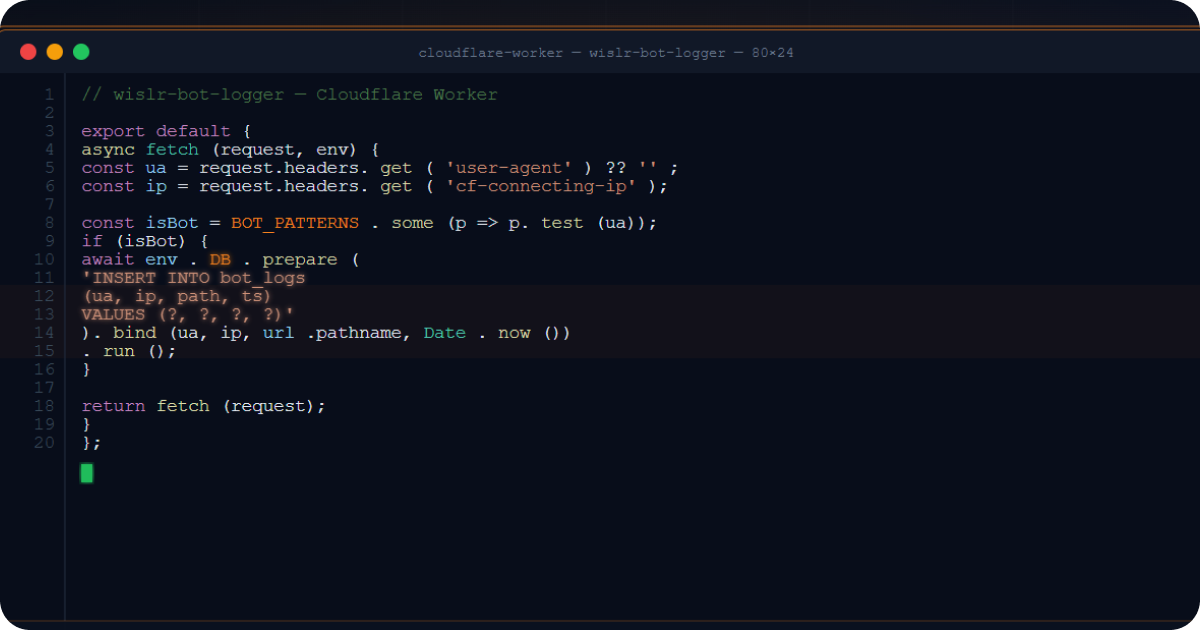
 Cloudflare Worker (runs on every request)
    ├──→ Passes request through to Shopify origin (visitor gets normal response)
    └──→ POSTs a JSON log entry to your log receiver (non-blocking, via ctx.waitUntil)
              │
              ▼
         Cloudflare Tunnel
         (CNAME on your domain → tunnel → localhost on your server)
              │
              ▼
         Node.js HTTP Receiver (localhost:9090)
              │
              ▼
         JSON log files written to disk
No ports are exposed publicly. The Cloudflare Tunnel handles secure transport from Cloudflare’s edge to your server over an outbound-only connection.
What Do You Need to Set Up Shopify Request Logging?
- A Shopify store with a custom domain proxied through Cloudflare (orange cloud enabled)
- A server to receive logs
- Node.js installed on the server
- A Cloudflare account with Workers enabled
- Wrangler CLI installed (npm install -g wrangler)
- Cloudflared installed on the server
Step 1: Create the Cloudflare Worker
The Worker intercepts every request on your domain, proxies it to Shopify, and asynchronously ships a log entry to your receiver.
1a. Worker Source (cloudflare-worker.js)
/**
 * Shopify Request Logger
 *
 * Cloudflare Worker that:
 * 1. Logs ALL requests to a self-hosted log receiver (via Cloudflare Tunnel)
 * 2. Optionally logs detailed bot request data to a database
 */

// ============================================
// CONFIG - update these for your setup
// ============================================
const INGEST_URL = 'https://log-collector.yourdomain.com/collect';  // Your tunnel hostname
const INGEST_API_KEY = process.env.INGEST_API_KEY || '';          // Set as Worker secret

// ============================================
// BOT DETECTION PATTERNS
// ============================================
const BOT_PATTERNS = {
  // AI realtime fetchers (user-triggered queries)
  'ChatGPT-User':    { pattern: /ChatGPT-User/i,    type: 'realtime' },
  'Perplexity-User': { pattern: /Perplexity-User/i,  type: 'realtime' },
  // Add your own patterns here for other AI bots

  // Search engine crawlers
  'Googlebot':       { pattern: /Googlebot/i,        type: 'crawler' },
  'Bingbot':         { pattern: /bingbot/i,          type: 'crawler' },

  // Social link preview bots
  'FacebookBot':     { pattern: /facebookexternalhit/i, type: 'preview' },
  'LinkedInBot':     { pattern: /LinkedInBot/i,      type: 'preview' },
};

function identifyBot(userAgent) {
  if (!userAgent) return { name: 'unknown', type: 'unknown' };
  for (const [name, config] of Object.entries(BOT_PATTERNS)) {
    if (config.pattern.test(userAgent)) return { name, type: config.type };
  }
  return { name: 'other', type: 'unknown' };
}

function isKnownBot(userAgent) {
  if (!userAgent) return false;
  return Object.values(BOT_PATTERNS).some(config => config.pattern.test(userAgent));
}

async function logToReceiver(request, env, perfData = {}) {
  const url = new URL(request.url);
  const cf = request.cf || {};
  const bot = identifyBot(request.headers.get('user-agent') || '');

  const logEntry = {
    // Request basics
    timestamp:        new Date().toISOString(),
    method:           request.method,
    url:              request.url,
    path:             url.pathname,
    host:             url.hostname,
    userAgent:        request.headers.get('user-agent') || '',
    ip:               request.headers.get('cf-connecting-ip') || '',
    referer:          request.headers.get('referer') || '',
    cfRay:            request.headers.get('cf-ray') || '',

    // Bot classification
    botName:          bot.name,
    botType:          bot.type,

    // Cloudflare geo data
    country:          cf.country || '',
    region:           cf.region || '',
    city:             cf.city || '',
    postalCode:       cf.postalCode || '',
    latitude:         cf.latitude || '',
    longitude:        cf.longitude || '',
    timezone:         cf.timezone || '',
    continent:        cf.continent || '',

    // Network info
    asn:              cf.asn || '',
    asOrganization:   cf.asOrganization || '',
    colo:             cf.colo || '',
    httpProtocol:     cf.httpProtocol || '',
    tlsVersion:       cf.tlsVersion || '',

    // Client hints (helps detect headless browsers)
    secChUa:          request.headers.get('sec-ch-ua') || '',
    secChUaMobile:    request.headers.get('sec-ch-ua-mobile') || '',
    secChUaPlatform:  request.headers.get('sec-ch-ua-platform') || '',

    // Fetch metadata (helps detect programmatic requests)
    secFetchDest:     request.headers.get('sec-fetch-dest') || '',
    secFetchMode:     request.headers.get('sec-fetch-mode') || '',
    secFetchSite:     request.headers.get('sec-fetch-site') || '',

    // Performance metrics
    edgeStartTimestamp:       perfData.startTime || '',
    edgeEndTimestamp:         perfData.endTime || '',
    edgeTimeToFirstByteMs:   perfData.ttfbMs ?? '',
    clientTcpRttMs:          cf.clientTcpRtt ?? '',
    cacheCacheStatus:        perfData.cacheStatus || '',
    originResponseStatus:    perfData.responseStatus ?? '',
  };

  try {
    await fetch(INGEST_URL, {
      method: 'POST',
      headers: {
        'Content-Type': 'application/json',
        'X-API-Key': env.INGEST_API_KEY,
      },
      body: JSON.stringify({ logs: [logEntry] }),
    });
  } catch (e) {
    console.error(`Log ingest failed: ${e.message}`);
  }
}

export default {
  async fetch(request, env, ctx) {
    const startTime = Date.now();
    const url = new URL(request.url);

    // Avoid infinite loop - skip logging for your ingest hostname
    if (url.hostname === 'log-collector.yourdomain.com') {
      return fetch(request);
    }

    // Fetch the origin response (Shopify)
    const response = await fetch(request);
    const endTime = Date.now();

    // Ship log entry asynchronously (does not delay the response)
    ctx.waitUntil(logToReceiver(request, env, {
      startTime,
      endTime,
      ttfbMs: endTime - startTime,
      cacheStatus: response.headers.get('cf-cache-status') || '',
      responseStatus: response.status,
    }));

    return response;
  }
};
1b. Wrangler Config (wrangler.toml)
name = "shopify-request-logger"
main = "cloudflare-worker.js"
compatibility_date = "2024-01-01"

routes = [
  { pattern = "www.yourdomain.com/*", zone_name = "yourdomain.com" }
]
Replace www.yourdomain.com with your Shopify store’s custom domain.
1c. Set Worker Secrets
wrangler secret put INGEST_API_KEY
# Paste your generated API key when prompted
1d. Deploy
npx wrangler deploy
Step 2: Set Up the Log Receiver on Your Server
A minimal Node.js HTTP server that accepts log batches and writes them to disk.
2a. Receiver Script (receive-logs.js)
const http = require('http');
const fs = require('fs');
const path = require('path');

const PORT = 9090;
const API_KEY = process.env.LOG_API_KEY;
const LOG_DIR = '/var/log/cdn-requests';  // Choose your log directory

if (!API_KEY) {
  console.error('LOG_API_KEY environment variable is required');
  process.exit(1);
}

// Ensure log directory exists
fs.mkdirSync(LOG_DIR, { recursive: true });

const server = http.createServer((req, res) => {
  // Health check
  if (req.method === 'GET' && req.url === '/status') {
    res.writeHead(200, { 'Content-Type': 'application/json' });
    res.end(JSON.stringify({ status: 'ok' }));
    return;
  }

  // Log ingest endpoint
  if (req.method === 'POST' && req.url === '/collect') {
    const apiKey = req.headers['x-api-key'];
    if (apiKey !== API_KEY) {
      res.writeHead(401, { 'Content-Type': 'application/json' });
      res.end(JSON.stringify({ error: 'unauthorized' }));
      return;
    }

    let body = '';
    let size = 0;
    const MAX_BODY = 10 * 1024 * 1024; // 10MB limit

    req.on('data', chunk => {
      size += chunk.length;
      if (size > MAX_BODY) {
        res.writeHead(413, { 'Content-Type': 'application/json' });
        res.end(JSON.stringify({ error: 'payload too large' }));
        req.destroy();
        return;
      }
      body += chunk;
    });

    req.on('end', () => {
      try {
        JSON.parse(body); // Validate JSON
      } catch (e) {
        res.writeHead(400, { 'Content-Type': 'application/json' });
        res.end(JSON.stringify({ error: 'invalid JSON' }));
        return;
      }

      const filename = `logs-${Date.now()}-${Math.random().toString(36).slice(2, 8)}.json`;
      const filepath = path.join(LOG_DIR, filename);

      fs.writeFile(filepath, body, err => {
        if (err) {
          console.error(`Write failed: ${err.message}`);
          res.writeHead(500, { 'Content-Type': 'application/json' });
          res.end(JSON.stringify({ error: 'write failed' }));
          return;
        }
        console.log(`Wrote ${filename} (${size} bytes)`);
        res.writeHead(200, { 'Content-Type': 'application/json' });
        res.end(JSON.stringify({ ok: true }));
      });
    });
  } else {
    res.writeHead(404, { 'Content-Type': 'application/json' });
    res.end(JSON.stringify({ error: 'not found' }));
  }
});

server.listen(PORT, '127.0.0.1', () => {
  console.log(`Log receiver listening on 127.0.0.1:${PORT}`);
});
Key points:
- Binds to
127.0.0.1only - not exposed to the internet - Authenticates requests with an
X-API-Keyheader - Writes each log batch as a timestamped JSON file
- 10MB payload limit per request
2b. Systemd Service
Create /etc/systemd/system/log-receiver.service:
[Unit]
Description=Shopify request log receiver
After=network.target

[Service]
Type=simple
Environment=LOG_API_KEY=<your-generated-api-key>
ExecStart=/usr/bin/node /opt/log-receiver/receive-logs.js
Restart=always
RestartSec=5
StandardOutput=journal
StandardError=journal

[Install]
WantedBy=multi-user.target
Enable and start:
systemctl daemon-reload
systemctl enable --now log-receiver
Step 3: Set Up the Cloudflare Tunnel
The tunnel creates a secure connection from Cloudflare’s edge to your server - no open ports, no firewall rules needed.
3a. Install cloudflared
# Debian/Ubuntu
curl -L https://github.com/cloudflare/cloudflared/releases/latest/download/cloudflared-linux-amd64.deb \
  -o /tmp/cloudflared.deb
dpkg -i /tmp/cloudflared.deb
3b. Authenticate
cloudflared tunnel login
# Opens a browser (or gives you a URL) to authorize with your Cloudflare account
This saves a cert.pem to ~/.cloudflared/.
3c. Create the Tunnel
cloudflared tunnel create shopify-log-collector
This outputs a Tunnel ID (a UUID) and creates a credentials JSON file in ~/.cloudflared/.
3d. Configure the Tunnel
Create ~/.cloudflared/config.yml:
tunnel: <YOUR-TUNNEL-ID>
credentials-file: /root/.cloudflared/<YOUR-TUNNEL-ID>.json

ingress:
  - hostname: log-collector.yourdomain.com
    service: http://localhost:9090
  - service: http_status:404
hostname: The subdomain that your Worker will POST logs toservice: Routes to your Node.js receiver on localhost:9090- Catch-all rule: Returns 404 for any other hostname (required by cloudflared)
3e. Create the DNS Record
cloudflared tunnel route dns shopify-log-collector log-collector.yourdomain.com
This creates a CNAME record in your Cloudflare DNS:
log-collector.yourdomain.com → <TUNNEL-ID>.cfargotunnel.com
The record is proxied through Cloudflare (orange cloud) - the tunnel ID in the CNAME is not publicly meaningful.
3f. Install as a System Service
cloudflared service install
systemctl enable --now cloudflared
This copies your config to /etc/cloudflared/config.yml and creates a systemd unit.
Verify the Tunnel
systemctl status cloudflared
# Should show: active (running)

curl https://log-collector.yourdomain.com/status
# Should return: {"status":"ok"}
Step 4: Generate Your API Key
Generate a random API key shared between the Worker and receiver:
openssl rand -hex 32
Set this value:
- As a Worker secret via
wrangler secret put INGEST_API_KEY - In the receiver’s systemd Environment line (LOG_API_KEY=…)
Step 5: Verify End-to-End
- Visit your Shopify store in a browser
- Check the receiver logs:
journalctl -u log-receiver -f
# Should show: Wrote logs-1234567890-abc123.json (1234 bytes)
- Inspect a log file:
cat /var/log/cdn-requests/logs-*.json | head -1 | python3 -m json.tool
You should see a full log entry with request details, geo data, and performance metrics.
Sample Log Entry
{
  "logs": [{
    "timestamp": "2026-03-04T15:19:55.584Z",
    "method": "GET",
    "url": "https://www.yourdomain.com/products/example",
    "path": "/products/example",
    "host": "www.yourdomain.com",
    "userAgent": "Mozilla/5.0 ...",
    "ip": "198.51.100.23",
    "country": "US",
    "city": "Seattle",
    "asn": 16509,
    "asOrganization": "Amazon.com",
    "colo": "SEA",
    "edgeTimeToFirstByteMs": 109,
    "originResponseStatus": 200,
    "cacheCacheStatus": "HIT",
    "botName": "other",
    "botType": "unknown"
  }]
}
How Does the Full Shopify Logging Pipeline Work?
| Component | What it does | Where it runs |
|---|---|---|
| Cloudflare Worker | Intercepts every request, proxies to Shopify, ships a log entry | Cloudflare edge (deployed via Wrangler) |
| Cloudflare Tunnel | Securely connects Cloudflare edge to your server (no open ports) | cloudflared daemon on your server |
| DNS CNAME | log-collector.yourdomain.com to <tunnel-id>.cfargotunnel.com |
Cloudflare DNS for your zone |
| Node.js Receiver | Accepts JSON log POSTs, authenticates via API key, writes to disk | Your server, bound to localhost:9090 |
Data Flow
1. Visitor hits https://www.yourdomain.com/products/something
2. Cloudflare routes through the Worker
3. Worker fetches origin response from Shopify → returns it to visitor
4. Worker POSTs { logs: [entry] } to https://log-collector.yourdomain.com/collect
   (non-blocking - visitor doesn't wait for this)
5. Cloudflare resolves log-collector.yourdomain.com via tunnel CNAME
6. Tunnel forwards request to localhost:9090 on your server
7. Receiver validates X-API-Key, writes JSON file to disk
What Shopify Request Data Can You Capture That Shopify Won’t Show You?
Shopify’s admin shows you page views, orders, and referral sources. It does not show you which AI bots visited, what pages they fetched, where they came from, or how fast your server responded. This setup captures 40+ fields per request across these categories:
| Category | Fields |
|---|---|
| Request | timestamp, method, url, path, host, userAgent, ip, referer |
| Bot Detection | botName, botType (realtime / crawler / preview / unknown) |
| Cloudflare Geo | country, region, city, postalCode, latitude, longitude, timezone, continent |
| Network | asn, asOrganization, colo, httpProtocol, tlsVersion |
| Client Hints | sec-ch-ua, sec-ch-ua-mobile, sec-ch-ua-platform |
| Fetch Metadata | sec-fetch-dest, sec-fetch-mode, sec-fetch-site |
| Performance | edgeTimeToFirstByteMs, clientTcpRttMs, cacheCacheStatus, originResponseStatus |
Client Hints and Fetch Metadata are especially useful for identifying headless browsers and unsigned bots - real browsers send these headers, most bots don’t.
Which AI Bots Are Visiting Your Shopify Store?
Shopify does not distinguish between human visitors and AI crawlers. This Worker classifies every User-Agent into two categories that matter for AI visibility:
| Type | Description | Examples |
|---|---|---|
realtime |
AI assistants fetching pages in response to user queries | ChatGPT-User, Claude-Web, Perplexity-User |
crawler |
Bots indexing content for search or AI training | GPTBot, Googlebot, ClaudeBot, Bingbot |
Requests from unrecognized User-Agents are tagged other / unknown - you can analyze these later to find unsigned crawlers. This is data that Shopify, Google Analytics, and most SaaS analytics platforms simply do not provide.
How to Store Shopify Bot Data in a Database for Deeper Analysis
For deeper bot analytics, you can extend the Worker to log bot requests to Supabase (or any database) in addition to disk. Add these Worker secrets:
wrangler secret put SUPABASE_URL
wrangler secret put SUPABASE_SERVICE_KEY
Then add a logToDatabase() function that POSTs to your database’s REST API, called via ctx.waitUntil() for known bot requests. This gives you structured, queryable bot data alongside the raw log files.
How to Configure Cloudflare DNS for a Shopify Store with Request Logging
For this setup to work, your domain must be proxied through Cloudflare (orange cloud). A typical Shopify + Cloudflare DNS setup:
| Type | Name | Target | Proxy |
|---|---|---|---|
| CNAME | www |
shops.myshopify.com |
Proxied (orange) |
| CNAME | log-collector |
<tunnel-id>.cfargotunnel.com |
Proxied (orange) |
The www CNAME points to Shopify - Cloudflare proxies and caches. The log-collector CNAME points to your tunnel - Cloudflare routes log traffic securely to your server.
Important: The Worker route must match the proxied hostname (e.g.,
www.yourdomain.com/*). It will not trigger on non-proxied (grey cloud) records.
How to Monitor and Maintain Your Shopify Log Pipeline
# Check receiver status
systemctl status log-receiver

# Check tunnel status
systemctl status cloudflared

# Tail live logs
journalctl -u log-receiver -f

# Count stored log files
ls /var/log/cdn-requests/*.json | wc -l

# Check disk usage
du -sh /var/log/cdn-requests/
Consider adding a cron job to monitor disk usage and alert when storage approaches your limit.
Frequently Asked Questions
Why can’t Shopify store owners access server logs?
Shopify is a fully managed SaaS platform. Store owners do not have access to the underlying server infrastructure, which means no access to raw HTTP request logs, access logs, or error logs. Shopify provides its own analytics dashboard with page views, orders, and referral data, but this does not include individual HTTP requests, bot user agents, response times, or geo data at the request level. There is no Shopify plan, including Shopify Plus, that provides raw server log access. The only way to capture this data is to intercept requests at the CDN layer before they reach Shopify’s origin servers.
How do you track AI bot traffic on a Shopify store?
AI bot traffic cannot be tracked through Google Analytics, Shopify Analytics, or any client-side JavaScript analytics tool because AI bots do not execute JavaScript. The only reliable method is server-side request logging. For Shopify stores, this means intercepting requests at the CDN layer using a Cloudflare Worker (or equivalent edge function on another CDN). The Worker logs every incoming request, including the User-Agent header, which identifies specific AI bots like ChatGPT-User, GPTBot, ClaudeBot, PerplexityBot, and others. This is the same approach used by emerging “agent analytics” platforms, but self-hosted and fully under your control.
What AI bots are crawling Shopify stores right now?
As of 2026, the primary AI bots hitting Shopify stores fall into two categories. Real-time fetch bots (ChatGPT-User, Claude-User, Perplexity-User) retrieve content on demand during live user conversations. Training crawlers (GPTBot, ClaudeBot, PerplexityBot, Bytespider, Amazonbot, Applebot) collect content on a schedule for model training and index building. Without server-side logging, none of these appear in Shopify’s analytics or Google Analytics.
How many data fields does Cloudflare log per request?
This setup captures 40+ fields per request, including request basics (timestamp, method, URL, path, user agent, IP, referer), bot classification (bot name and type), Cloudflare geo data (country, region, city, postal code, latitude, longitude, timezone, continent), network info (ASN, organization, data center, HTTP protocol, TLS version), client hints (sec-ch-ua headers that help detect headless browsers), fetch metadata (sec-fetch headers that identify programmatic requests), and performance metrics (time to first byte, TCP round trip time, cache status, origin response status).
How does this compare to Shopify’s built-in analytics?
Shopify’s analytics dashboard shows page views, sessions, conversion rates, and referral sources. It does not show individual HTTP requests, bot user agents, geographic data at the request level, response performance metrics, or any AI bot activity. Google Analytics, which Shopify integrates with, has the same limitation because it relies on client-side JavaScript. This Cloudflare-based logging setup captures every request that touches your domain, including those from bots that never execute JavaScript, giving you a complete picture that Shopify’s tools cannot provide.
Can you use this setup with a CDN other than Cloudflare?
The architecture applies to any edge CDN that supports edge functions and secure tunneling. Cloudflare Workers have equivalents on other platforms: Vercel Edge Functions, AWS CloudFront Functions, Fastly Compute, and Akamai EdgeWorkers can all intercept requests and ship log data. The tunnel component can be replaced with any secure connection method (SSH tunnel, VPN, direct HTTPS endpoint with IP allowlisting). The core pattern is the same: intercept at the edge, log asynchronously, ship to your own receiver.